
AI-powered medical search engine that delivers synthesized, cited answers from peer-reviewed research for clinicians.

Onhand
0Popularity
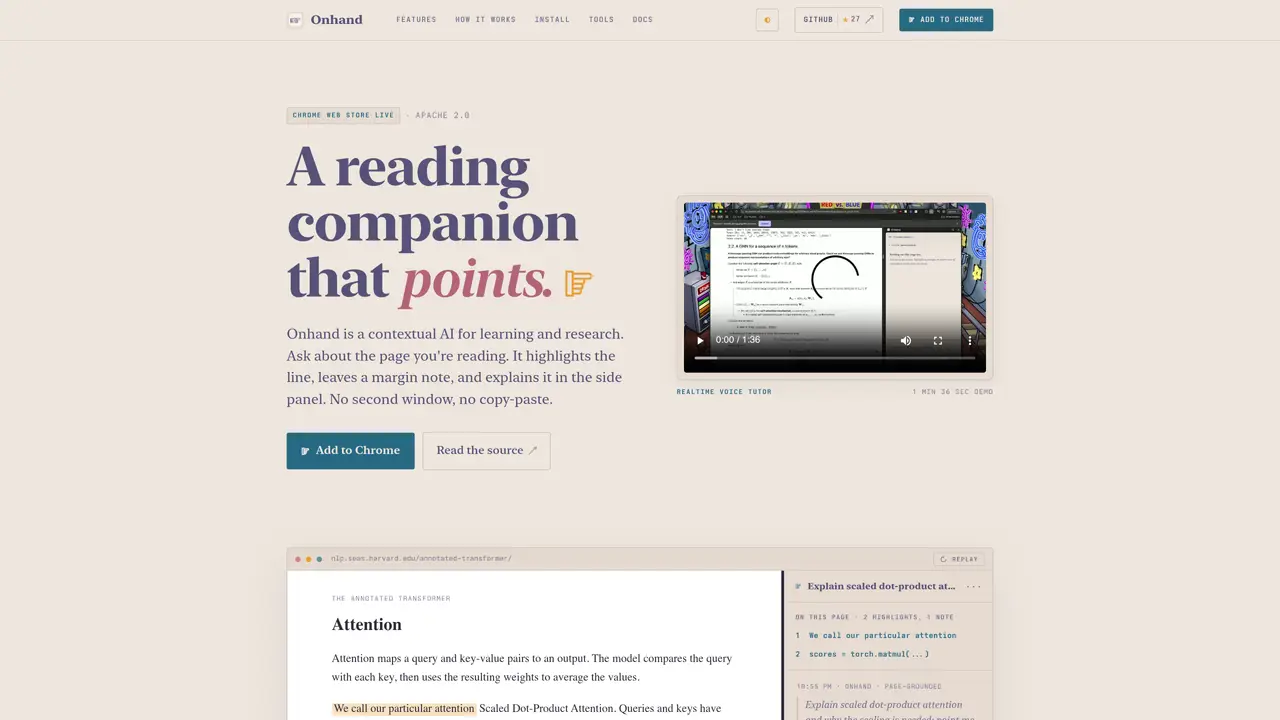
About Onhand
Onhand is a browser extension that functions as a contextual AI assistant for reading and research. It integrates directly into the active tab, allowing users to ask questions about the content they are viewing without leaving the page or copying text. When a question is posed, Onhand highlights the relevant passage in gold, adds a concise margin note in the article’s own voice, and provides an explanation in a side panel with citations back to the source material. The tool saves each session, including highlights, notes, transcripts, and page snapshots, enabling users to return to their exact state later. It supports realtime voice interaction, allowing users to discuss papers or texts aloud while the model references their highlights and visible content. Onhand operates locally on the user’s device, with sessions stored in chrome.storage.local, and offers privacy-focused options such as an open-source model or integration with external providers like OpenAI. The extension is designed to be lightweight and auditable, with a runtime composed of small, single-purpose tools that interact with browser tabs.
Key features
- Contextual AI for asking questions about the current page
- Highlights exact phrases or paragraphs in gold
- Adds margin notes in the article's own voice
- Provides explanations in a side panel with citations
- Saves sessions with highlights, notes, and transcripts
- Supports realtime voice interaction
- Operates locally with optional open-source or provider models
- Lightweight and auditable runtime with small, single-purpose tools
Use cases
- Understanding complex academic papers or technical documents
- Researching topics by asking contextual questions without leaving the page
- Studying or reviewing content with saved highlights and notes for later review
Pros
- Integrates directly into the active browser tab without requiring a second window
- Highlights relevant text and adds margin notes in the article's own voice
- Saves sessions with highlights, notes, and transcripts for later review
- Supports realtime voice interaction for discussing content
- Operates locally with optional open-source or provider-based models
Cons
- Requires Google Chrome or a Chromium-based browser
- Limited to pages that Chromium can render
- Experimental voice tutor feature may have variable performance
Frequently asked questions about Onhand
What is Onhand and what does it do?
Onhand is a browser extension that acts as a contextual AI assistant for reading and research. It allows users to ask questions about the content they are viewing directly within the active tab, highlighting relevant passages, adding margin notes, and providing explanations with citations without leaving the page or copying text.
Who is Onhand designed for?
Onhand is designed for students, researchers, and anyone engaged in deep reading or study. It is particularly useful for those who need to understand complex texts, analyze documents, or retain information from web pages, academic papers, or articles.
How does Onhand handle privacy and data storage?
Onhand operates locally on the user’s device, with sessions stored in chrome.storage.local. It offers privacy-focused options, including an open-source model or integration with external providers like OpenAI, and provider keys never leave the user’s device.
Can Onhand work with any webpage or document?
Onhand can attach to any page that Chromium can render, including Wikipedia, arXiv papers, Google Docs, and Substack articles. It works directly within the active tab, making it compatible with a wide range of web-based content.
Does Onhand support voice interaction?
Yes, Onhand includes a realtime voice tutor feature that allows users to discuss papers or texts aloud while the model references their highlights and visible content. This feature is experimental and designed to enhance understanding through spoken dialogue.
How do I get started with Onhand?
To get started, install Onhand from the Chrome Web Store or download the ZIP file and load it manually via chrome://extensions with developer mode enabled. Once installed, pin the extension, open any page, and click the icon to open the side panel to begin asking questions.