How to submit your tool
Paste your website, check the listing we draft from it, pay, and it goes live.
You need an account with a confirmed email — see Creating an account. Then open Advertise (or Submit Tool in your account), which shows the price and what a listing includes. Enter your website and press List my tool.
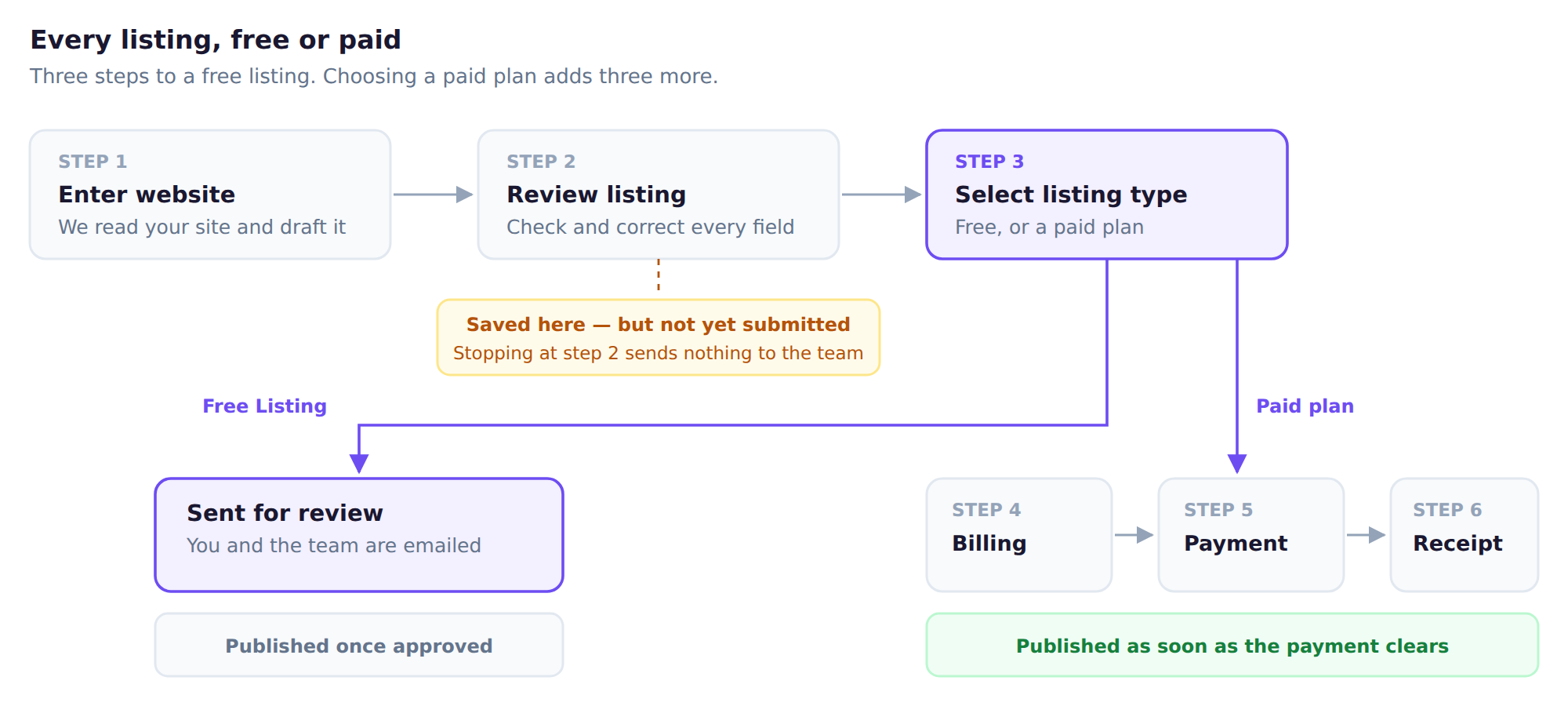
Step 1 — Enter your website
One field. Type your address (https:// is optional) and press Build my listing. We read your public website and draft the listing from what is actually written there. See How the AI draft works.
You can skip this and fill the form in by hand instead.
Step 2 — Review the listing
Check every field. The draft is a first pass and it does get things wrong. Anything it could not establish is left blank with a note telling you so. Fields marked * are required. You can file the tool under more than one category here.
Step 3 — Pay
One screen: your billing details, a choice of payment method, and the Pay button. See Paying for a listing.
Step 4 — Done
Your listing goes live as soon as the payment clears — there is no queue. You get a receipt on screen and by email.
If you stop before paying
Your tool is saved on your dashboard as Awaiting payment. Press Pay now there to finish whenever you are ready.
Already listed? Claim it instead — see Your tool is already listed.