
Remove image backgrounds instantly, save time with advanced AI, and create stunning images effortlessly.
54M visits/mo-8.6%#2 Image & Design
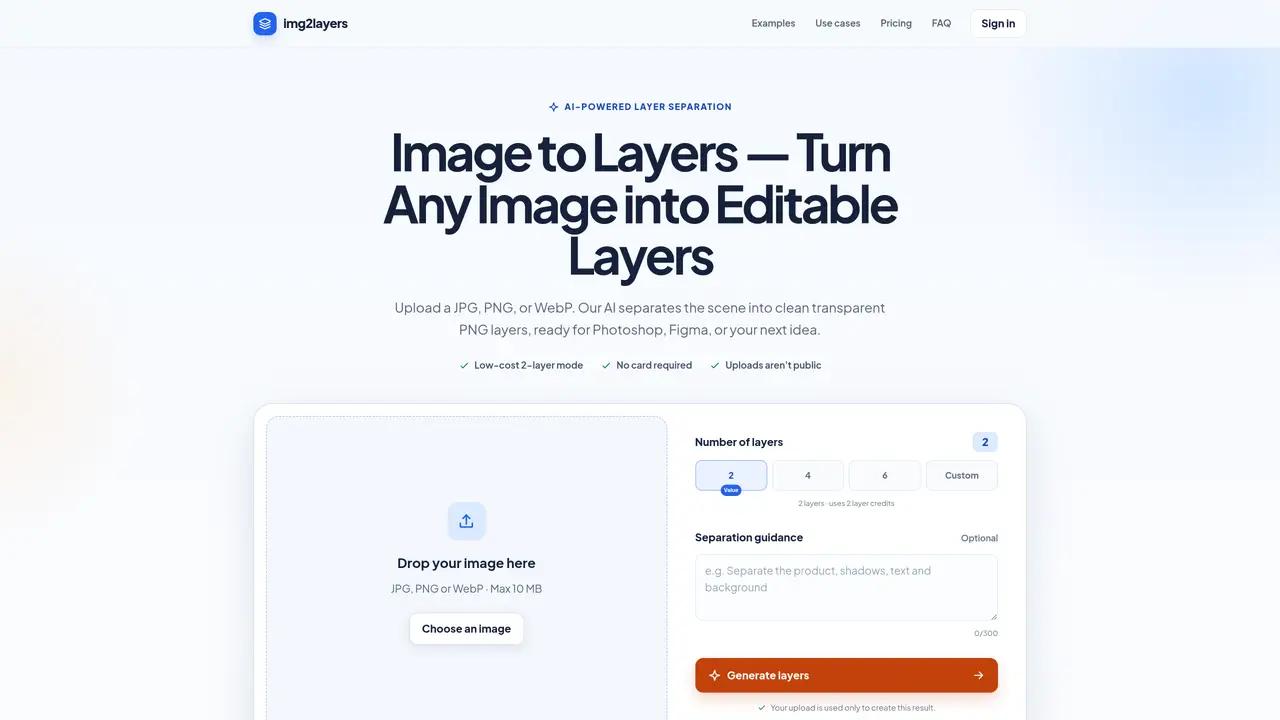
Image to Layers uses artificial intelligence to decompose a single JPG, PNG, or WebP image into multiple transparent PNG layers. The tool targets creative workflows where elements like subjects, backgrounds, shadows, text, or foreground details need independent editing. Users upload an image up to 10 MB, select a layer count (typically 2, 4, or more), and optionally provide guidance to steer the separation. The AI then generates separate layers that can be toggled on or off for review before downloading as individual files or a ZIP archive. Outputs are compatible with Photoshop, Figma, Photopea, Affinity Photo, and similar editors. The service emphasizes privacy by keeping uploads confined to the processing workflow and not storing them in a public gallery. It is positioned for tasks such as product photography retouching, portrait editing, campaign asset remixing, and scene depth adjustments where layered control is required without manual masking.
The tool supports JPG, PNG, and WebP formats for uploads, and generates transparent PNG layers as output.
Uploads are processed privately and not stored in a public gallery or retained beyond the processing workflow.
Yes, users can select the number of layers (e.g., 2, 4, or custom) and provide optional separation guidance to steer the AI.
The transparent PNG layers are compatible with Photoshop, Figma, Photopea, Affinity Photo, and similar editing tools.
Each generated output layer consumes one credit, with pricing tiers offering different numbers of credits per month.
Images with clear visual boundaries, such as product photos, portraits, posters, and compositions with distinct elements, typically yield the best results.
We use essential cookies to run aitoolnavio™, and optional cookies to analyze traffic and measure our marketing. You choose what we use — optional cookies stay off unless you turn them on. See our Privacy Policy.
One short email a week: fresh tools worth trying, honest takes and the updates that actually matter. No spam, unsubscribe any time.
Remove image backgrounds instantly, save time with advanced AI, and create stunning images effortlessly.
AI platform for upscaling images, enhancing photos, and generating high-quality creative assets with contextual detail.
Remove backgrounds, adjust colors, add text, filters, and shapes with ease.
Unleash creativity: edit photos, videos, and designs with AI-enhanced tools.
Transform photos effortlessly with AI: edit, enhance, and remove backgrounds.
Web and mobile AI platform for generating, editing, and training custom visuals from prompts with community models and face-swap tools.
Convert raster images into scalable vector graphics within seconds.
Create stunning designs, edit photos, remove objects, make collages, and transform images with powerful AI tools and effects.
Create stunning visuals, access image recognition and processing, and express creatively with natural language processing.
Cloudinary provides APIs and tools to integrate, manage, and optimize images and videos for AI-driven visual experiences.
All-in-one AI suite for creators to automate workflows, edit media, and generate content across video, design, and productivity tools.
Identify stolen identities, uncover copyright infringements, and find unauthorized use of images with precision.
Matched on what this tool does — grouped by the job you would be replacing.
matches AI-based image decomposition into transparent PNG layers · Choice of 2, 4, or custom layer counts · Optional separation guidance for targeted layering
Separates flat AI-generated images into editable PNG layers for further design work
Converts flat images into editable layered PSD, PNG or ZIP files