

AI-powered website builder that generates a professional site in under a minute and includes tools for content, SEO, and analytics.
52M visits/mo+0.7%#4 Coding & Development
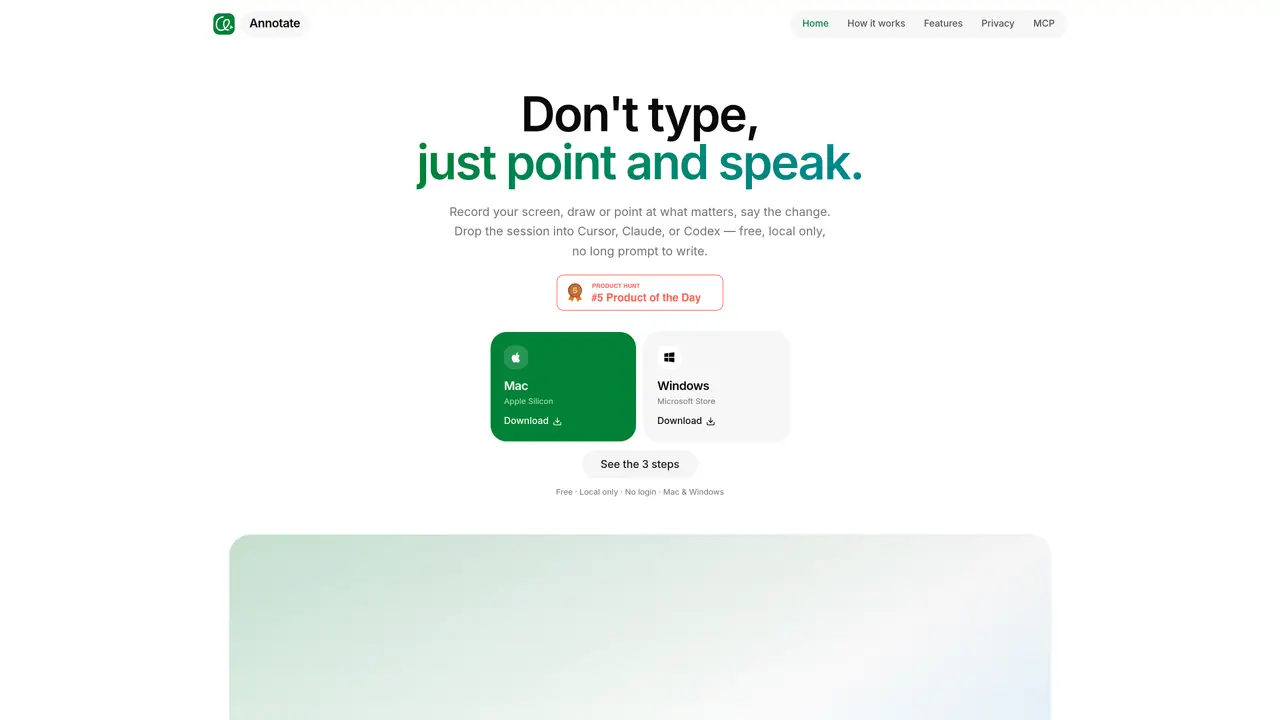
Annotate records on-screen activity and voice narration to create a structured brief for AI coding assistants. Users capture their screen, draw or point at specific UI elements, and speak their instructions aloud. The recording is saved locally and can be opened directly in Cursor, Claude Code, or Codex without manual prompt drafting. The tool emphasizes precision by marking exact UI elements with gestures and synchronizing speech with on-screen actions. It supports multi-monitor setups and avoids uploading data, keeping all content on the user’s device. The output is designed to reduce ambiguity for AI agents by preserving timing, clicks, and contextual details that static screenshots cannot convey.
Annotate is a screen recording tool that captures on-screen activity, gestures, and voice narration to create a structured prompt for AI coding assistants. Users record their screen, draw or point at specific UI elements, and speak their instructions aloud. The recording is saved locally and can be opened directly in supported AI agents like Cursor, Claude Code, or Codex.
Annotate integrates with Cursor, Claude Code, and Codex. The recorded sessions can be opened directly in these agents, allowing them to process the on-screen actions, gestures, and transcribed speech as a prompt.
No, Annotate operates locally and does not upload any data. All recordings, frames, and transcripts remain on the user's device, ensuring privacy and security.
Yes, Annotate is free to use with no login required. It is available for both macOS (Apple Silicon) and Windows, with versions accessible via the Mac Apple Silicon download or Windows Microsoft Store.
Yes, Annotate supports multi-monitor setups. Users can capture one window or every display in a single session, making it suitable for workflows involving multiple screens.
To get started, download Annotate for your operating system (macOS Apple Silicon or Windows), install it, and begin recording your screen. After recording, open the session directly in your preferred AI coding assistant to hand off the task.
xannotate.com · third-party estimates from Similarweb
Traffic figures are third-party estimates, good for scale and trends; they can differ from a company's own numbers. Updated monthly.
We use essential cookies to run aitoolnavio™, and optional cookies to analyze traffic and measure our marketing. You choose what we use — optional cookies stay off unless you turn them on. See our Privacy Policy.
One short email a week: fresh tools worth trying, honest takes and the updates that actually matter. No spam, unsubscribe any time.
AI-powered website builder that generates a professional site in under a minute and includes tools for content, SEO, and analytics.
AI-powered coding platform that uses agents to plan, write, and test software with real-time feedback and verifiable artifacts.
Automate code, research, and documents using agents.
AI-powered code assistant that generates, reviews, optimizes, and debugs code with natural language prompts and editor integrations.
AI assistant for safe, reliable productivity with code, collaboration, and integrations.
AI-powered IDE for autonomous coding tasks and agentic development workflows
Privacy-focused AI chatbot that generates uncensored text, code, images, and translations without storing conversations or requiring an account.
A free web-based AI chatbot and agent for writing, coding, research, and content creation with multilingual support.
Write & run code in 50+ languages, auto-complete with AI, and code faster with an intuitive interface.
An IDE that automates legacy-to-modern code migration using autonomous coding agents.
AI models that return typed decisions with calibrated confidence for software automation
Practice coding challenges, improve technical skills, get detailed explanations, compare performance with peers.
Matched on what this tool does — grouped by the job you would be replacing.
matches Screen recording with window or display selection · On-screen drawing and pointing tools · Voice narration transcription
AI platform that turns screen recordings into interactive demos, videos, and visuals with AI voiceovers and editing—no designers required.
Turn screen recordings into governed agent workflows that operate across real software
Desktop workspace for coding agents like Codex and Claude Code
matches Voice narration transcription · Local file storage without uploads
matches On-screen drawing and pointing tools · Gesture and frame synchronization
Revolutionize transcription with unmatched accuracy, speed, and language support.
Local speech-to-text transcription for macOS with privacy-focused features
Converts MP3, M4A or WAV audio files to editable text without an account
Collects precise visual feedback on live websites for AI agents to fix
Mac desktop app that records screens into a searchable timeline and uses AI to detect patterns and generate automations from repetitive tasks.