
Summarizes, extracts, and rewrites content from files.
89M visits/mo+8.7%#2 Productivity & Office

Browser extension to export AI chat histories into PDF, Word, TXT, images, or Markdown
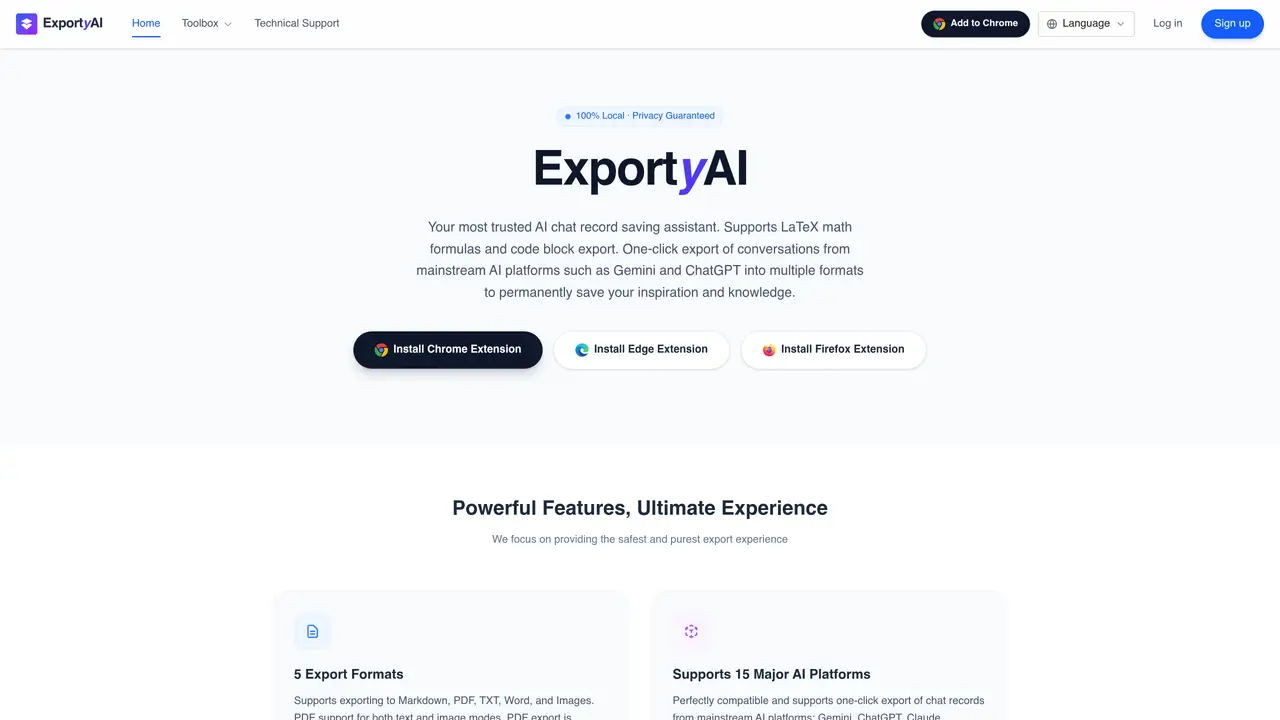
ExportyAI is a browser extension that enables one-click export of AI chat conversations into multiple formats including Markdown, PDF, TXT, Word, and images. The tool supports mainstream AI platforms such as ChatGPT, Gemini, Claude, and DeepSeek, allowing users to permanently save conversations for research, learning, or documentation purposes. Exports are performed locally in the user’s browser without server-side processing, ensuring data privacy and security. The extension provides a preview feature to inspect the full conversation layout before downloading, including support for LaTeX mathematical formulas and code block formatting. Users can also sync chat history directly to Notion or use right-click actions to copy selected messages or entire conversations as Markdown. The tool offers both text and image modes for PDF exports, achieved through the browser’s built-in print function.
On supported AI websites, click the extension icon to open the popup, then click 'Open Side Panel'. ExportyAI will fetch your chat history list, allowing real-time search, multi-selection, and batch export as a ZIP archive or merge into a single document.
Yes. The preview export feature loads the entire chat history in one go without manual scrolling. Click the extension icon and select 'Preview & Export' to inspect the full conversation layout, including formulas, before downloading.
Select text and right-click to choose 'Copy Selection as Markdown'. Alternatively, right-click any blank space or the extension icon to copy the entire conversation to your clipboard in Markdown format.
Fallback Mode is used when the standard export fails to capture the full chat history. It switches to HTML parsing to ensure completeness. Enable it in the extension settings if exports appear incomplete.
PDF exports are generated using the browser's built-in print function ('Save as PDF'). Ensure the conversation is fully rendered in the preview window before initiating the export to avoid truncation.
Yes. All parsing, crawling, and exporting occur locally in your browser. ExportyAI does not collect, upload, or store your chat records, ensuring absolute data security and privacy.
We use essential cookies to run aitoolnavio™, and optional cookies to analyze traffic and measure our marketing. You choose what we use — optional cookies stay off unless you turn them on. See our Privacy Policy.
One short email a week: fresh tools worth trying, honest takes and the updates that actually matter. No spam, unsubscribe any time.
Summarizes, extracts, and rewrites content from files.
Automate citation and reference management, aid research with text and data mining, and securely store and share documents.
Capture, organize, and share ideas, notes, and documents effortlessly.
Headless CMS that lets developers manage structured content and deliver it anywhere via flexible APIs and real-time collaboration tools.
Efficiently create and manage cases, streamline workflows, securely store and share documents, and collaborate with colleagues.
Access files, collaborate, and secure your data with unbeatable customizable system.
An AI-powered PDF editor and converter for editing, OCR, signing, annotating, merging, and chatting with documents across devices.
Browser-based PDF editor that edits, signs, converts, merges, compresses, and shares files, with AI for form filling, document chat, and PDF creation.
Securely store, access, and search documents from any device with ease.
Create and customize legal documents, consult lawyers, and access legal guides all in one platform.
Centralize brand assets, automate approvals, and collaborate with external partners in a single digital asset management platform.
AI diagramming and documentation tool for engineering teams to create and update cloud architecture, ERDs, and flowcharts from prompts, code, and CI/CD workflows.
Matched on what this tool does — grouped by the job you would be replacing.
matches One-click export of AI chat histories · PDF export in text or image mode · Markdown to Word (.docx) conversion
Exports ChatGPT conversations to PDF, Markdown, HTML or TXT on iPhone and iPad
A Chrome extension that exports NotebookLM chats, notes, and reports to PDF, Word, or Markdown in one click.
Browser extension to export AI chat conversations to PDF, DOCX, Markdown and more