

Summarizes, extracts, and rewrites content from files.
89M visits/mo+8.7%#2 Productivity & Office
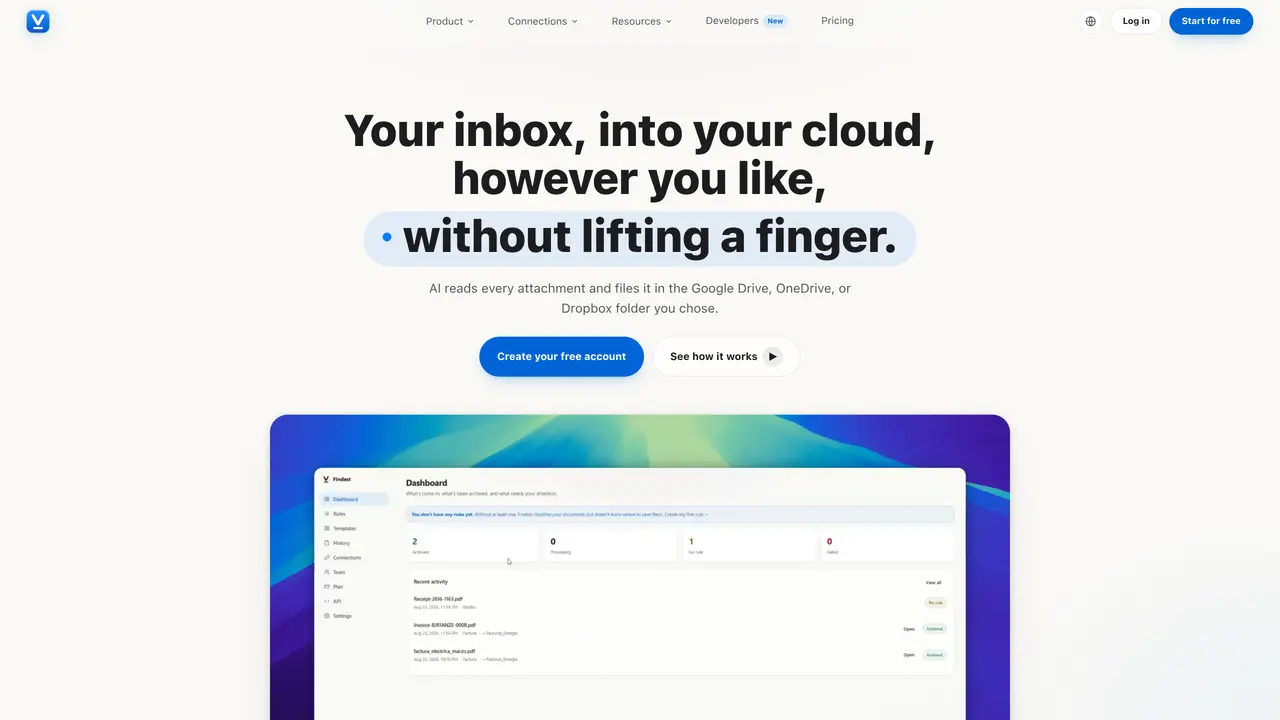
Findest automates the filing of email attachments such as invoices, receipts, payslips, contracts, and bank statements into cloud storage services. Users connect their Gmail, Outlook, Google Drive, OneDrive, or Dropbox accounts and define rules to direct specific attachments to designated folders. The AI reads each attachment before classification and uses sender details, document type, and extracted dates to rename files consistently. Once configured, the system processes incoming emails automatically, retrying failed transfers without user intervention. Every action is logged, showing which rule applied, where the file was stored, or why no match was found. The tool supports multiple cloud providers simultaneously, allowing different rules to target different services. Security measures include read-only access to email accounts and restricted folder permissions in cloud storage, with all data hosted in EU-based servers.
Findest supports Gmail and Outlook, including both personal and Microsoft 365 work accounts.
Yes, Findest allows users to connect Google Drive, OneDrive, and Dropbox simultaneously, with each rule targeting a specific cloud service.
No, once configured, Findest processes incoming emails automatically without requiring further user intervention.
Findest automatically retries failed transfers without user intervention, ensuring documents are not lost.
Findest uses read-only access for email accounts, restricted folder permissions in cloud storage, EU-based servers, and per-user data isolation.
Yes, Findest maintains a full history of every document, including classification details, applied rules, and direct links to files in your cloud storage.
We use essential cookies to run aitoolnavio™, and optional cookies to analyze traffic and measure our marketing. You choose what we use — optional cookies stay off unless you turn them on. See our Privacy Policy.
Summarizes, extracts, and rewrites content from files.
Automate citation and reference management, aid research with text and data mining, and securely store and share documents.
Capture, organize, and share ideas, notes, and documents effortlessly.
Headless CMS that lets developers manage structured content and deliver it anywhere via flexible APIs and real-time collaboration tools.
Efficiently create and manage cases, streamline workflows, securely store and share documents, and collaborate with colleagues.
Access files, collaborate, and secure your data with unbeatable customizable system.
An AI-powered PDF editor and converter for editing, OCR, signing, annotating, merging, and chatting with documents across devices.
Browser-based PDF editor that edits, signs, converts, merges, compresses, and shares files, with AI for form filling, document chat, and PDF creation.
Securely store, access, and search documents from any device with ease.
Create and customize legal documents, consult lawyers, and access legal guides all in one platform.
Centralize brand assets, automate approvals, and collaborate with external partners in a single digital asset management platform.
AI diagramming and documentation tool for engineering teams to create and update cloud architecture, ERDs, and flowcharts from prompts, code, and CI/CD workflows.
Matched on what this tool does — grouped by the job you would be replacing.
matches AI attachment classification · Multi-cloud support (Google Drive, OneDrive, Dropbox) · Custom rule-based filing
An AI bookkeeping assistant that extracts receipt, invoice, and bank statement data, categorizes expenses, detects duplicates, and exports to CSV/Excel for small businesses and finance teams.
AI invoice and receipt processing for accounting teams that captures documents from email, extracts key fields with OCR, and exports structured data.
AI-powered invoice extraction and processing from email inboxes
Autonomous financial OS handling receipt OCR, bank reconciliation and multi-entity ledgers
One short email a week: fresh tools worth trying, honest takes and the updates that actually matter. No spam, unsubscribe any time.